I’m working to set up monitoring of Canon printers with SNMP, and I’m having a hard time finding resources around the internet on how to go about doing this, so this article will be collecting the resources I’ve found and putting them in once place.
Commands for Monitoring Canon Printers with SNMP
————————————————
One of the problems that I had to look into was monitoring of CANON printers, and properly modifying Nagios config files for that:
Once you understand a little how NAGIOS works you will understand what I am trying to show you here in example:
in /usr/local/nagios/etc/objects/commands.cfg I added a command:
define command{
command_name check_snmp_canon
command_line $USER1$/check_snmp -H $HOSTADDRESS$ -l STATUS -C public $ARG1$ $ARG2$
}
then in: /usr/local/nagios/etc/objects/printer.cfg you define host and service like this:
define host{
use generic-printer
host_name SOMECANONPRINTER
alias SOMECANONPRINTER Alias
address “IP of the printer goes here”
hostgroups network-printers
}
define service{
use generic-service
host_name SOMECANONPRINTER
service_description Printer Status
check_command check_snmp_canon!-o hrDeviceStatus.1 -r “2|3”
normal_check_interval 10
retry_check_interval 1
}
via http://mariuszgal.com/blog/?p=93
Some of the commands I’ve tried to execute directly from the command line use something like this:
/usr/lib/nagios/plugins/check_snmp -H 192.168.0.105 -C public -o hrDeviceStatus.1
snmpwalk -v -c 1.3.6.1
snmpwalk -v 2c -c public 192.168.0.104
What is SNMP
————
Simple Network Management Protocol (SNMP) is a set of standards for managing network devices, network devices are monitored by a SNMP manager which connects to an SNMP agent on network devices. Data which the SNMP agent can access is stored in a database called Management Information Base (MIB), MIBs are sometimes called MIB trees and small pieces of information (variables) are stored on MIB leaves.
A community string is a password for accessing the SNMP agent and separate community strings are usually used for systems which require read only or read/write access.
There are 4 version of SNMP;
– **SNMPv1** – Basic authentication through the use of community strings using SMIv1, the community string is sent in plain text
– **SNMPv2** – Does not community strings to authenticate. Mandates the use of SMIv2 and allows the use of a new message GetBulk and Inform
– **SNMPv2c** – Uses SNMP version 1 style community strings sent in plain text but operates more similarly to to SNMPv2
– **SNMPv3** – Similar to SNMPv2 but improvements made for security and access control.
There aren’t that many SNMP message types and its useful to know them all, the SNMP message types are;
– **Get** – Requests a single single variable from a MIB
– **GetNext** – Requests the next MIB leaf in the MIB tree
– **GetBulk** – Requests a sequential list of MIB leaves in a single request, GetBulk is commonly used to extract complex MIB structures
– **Set** – this message changes the value of a MIB variable
– **Response** – Sent in response to a set, get or inform type messages
– **Trap** – This message is sent in an unsolicited fashion and does not require confirmation
– **Inform** – Sent between SNMP managers to inform each other about MIB data
via http://communitystring.com/2009/06/snmp-community-strings/
monitor all HP Laserjet printers using nagios’ check_hpjd
———————————————————
On Thu, Jul 23, 2009 at 11:35 AM, SYS ADMIN wrote:
> I have managed to monitor all my HP Laserjet printers using check_hpjd.
> I have several networked Canon copier/printers on my LAN, and can’t seem
> to get any response back from them, although snmp is installed, and I
> try check_snmp.
> Does anyone have any experience/idea what to do?
> I can’t seem to even find OIDs for Canons.
Make sure you are using the correct SNMP community string .. if you
use an incorrect community string with an SNMP agent, you will not get
an error back from the agent, just a timeout.
Did you check the vendor’s web site for MIBs? That is my first step
when I am asked to monitor a device for which I have no local MIBs to
look at.
Once you have a valid community string, you can do an SNMP walk on the
device to see what OIDs it supports .. e.g. with the Net-SNMP CLI
utilities
snmpwalk -v -c 1.3.6.1
that will walk the entire OID tree of the agent. Some agents won’t
walk the enterprise OID tree with that, so you might have to do a
separate walk to get the enterprise OID tree output from the agent
snmpwalk -v -c 192.168.3.1 1.3.6.1.4.1
Other good resources to search for MIBs are the obvious one (Google)
or mibdepot.com
– Max
via http://www.mail-archive.com/[email protected]/msg28182.html
Keywords I used to find information about Monitoring Canon Printers with Nagios
——————————————————————————-
Keywords I used when I was searching for how to do this:
– Canon iR nagios
– canon snmp nagios example
– canon snmp oid –
– check_hpjd | Nagios Plugins
– check_snmp -H 192.168.0.15 -C public -o 1.3.6.1.2.1.43.11
– community snmp agent community snmp sysad
– define command check_snmp canon
– ir 3035 oid smnp
– monitoring – How can I set up Nagios to Monitor a Canon iR 3035? –
– canon check_snmp public
– nagios canon check_snmp public
– nagios canon snmp oid
– nagios monitor canon imagerunner paper
Canon Environment Setup
—
This section describes how to set up the environment for communication between the machine and computers on your network. If you are configuring the settings for the first time, use the control panel of the machine.
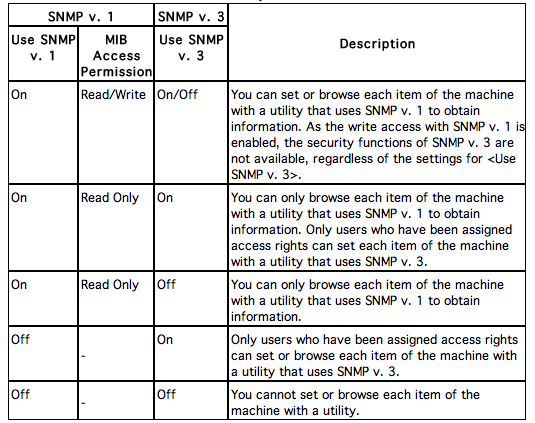
The machine supports the SNMP v. 1 and SNMP v. 3 management functions. You can use them simultaneously. The [Read Only]/[Read/Write] functions of SNMP v. 1 and the security functions of SNMP v. 3, such as an encrypted communication path, enable you to manage devices more securely. The available combinations of SNMP v. 1 and SNMP v. 3 functions you can use are shown below:
If you want to specify a Community Name 1
Press [Community Name 1 Settings] ? [On] ? specify the settings for and the community name in [Community Name].
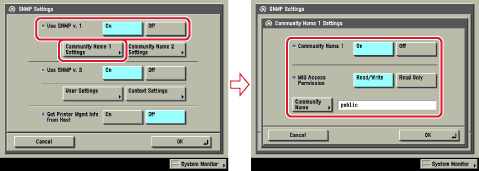
You can also change the community name in [Community Name] to a name other than ‘public’.
via http://www.tcnj.edu/~helpdesk/documents/Canon%20eManuals/Canon%20BW%20eManual/imageRUNNER3245_Manual_us/contents/nw_007/func.html
How can I set up Nagios to Monitor a Canon iR 3035?
—
Canon ImageRunner printers support SNMP(v1, “public” community by default) to query their status. They report through the standard printers MIB (`.1.3.6.1.43`, [available here][1]) as well as a proprietary Canon MIB (available through [Canon, with a developer membership][2]).
You can also implement screen-scraping from the web interface, but SNMP would be easier (and less likely to change if you change printers in the future).
[1]: http://www.oidview.com/mibs/0/Printer-MIB.html
[2]: http://www.developersupport.canon.com/assets
via http://serverfault.com/questions/352801/how-can-i-set-up-nagios-to-monitor-a-canon-ir-3035/
Nagios Plugin Check SNMP
—
Usage:
check_snmp -H -o [-w warn_range] [-c crit_range]
[-C community] [-s string] [-r regex] [-R regexi] [-t timeout] [-e retries]
[-l label] [-u units] [-p port-number] [-d delimiter] [-D output-delimiter]
[-m miblist] [-P snmp version] [-L seclevel] [-U secname] [-a authproto]
[-A authpasswd] [-x privproto] [-X privpasswd]
Options:
-h, –help
Print detailed help screen
-V, –version
Print version information
-H, –hostname=ADDRESS
Host name, IP Address, or unix socket (must be an absolute path)
-p, –port=INTEGER
Port number (default: 161)
-n, –next
Use SNMP GETNEXT instead of SNMP GET
-P, –protocol=[1|2c|3]
SNMP protocol version
-L, –seclevel=[noAuthNoPriv|authNoPriv|authPriv]
SNMPv3 securityLevel
-a, –authproto=[MD5|SHA]
SNMPv3 auth proto
-x, –privproto=[DES|AES]
SNMPv3 priv proto (default DES)
-C, –community=STRING
Optional community string for SNMP communication (default is “public”)
-U, –secname=USERNAME
SNMPv3 username
-A, –authpassword=PASSWORD
SNMPv3 authentication password
-X, –privpasswd=PASSWORD
SNMPv3 privacy password
-o, –oid=OID(s)
Object identifier(s) or SNMP variables whose value you wish to query
-m, –miblist=STRING
List of MIBS to be loaded (default = none if using numeric OIDs or ‘ALL’
for symbolic OIDs.)
-d, –delimiter=STRING
Delimiter to use when parsing returned data. Default is “=”
Any data on the right hand side of the delimiter is considered
to be the data that should be used in the evaluation.
-w, –warning=THRESHOLD(s)
Warning threshold range(s)
-c, –critical=THRESHOLD(s)
Critical threshold range(s)
–rate
Enable rate calculation. See ‘Rate Calculation’ below
–rate-multiplier
Converts rate per second. For example, set to 60 to convert to per minute
-s, –string=STRING
Return OK state (for that OID) if STRING is an exact match
-r, –ereg=REGEX
Return OK state (for that OID) if extended regular expression REGEX matches
-R, –eregi=REGEX
Return OK state (for that OID) if case-insensitive extended REGEX matches
–invert-search
Invert search result (CRITICAL if found)
-l, –label=STRING
Prefix label for output from plugin
-u, –units=STRING
Units label(s) for output data (e.g., ‘sec.’).
-D, –output-delimiter=STRING
Separates output on multiple OID requests
-t, –timeout=INTEGER
Seconds before connection times out (default: 10)
-e, –retries=INTEGER
Number of retries to be used in the requests
-v, –verbose
Show details for command-line debugging (Nagios may truncate output)
via http://nagiosplugins.org/man/check_snmp
###SNMP Commands Specific to Canon iR3035 30.02###
Here is the format of a command I found to work with Canon Image Runner 3035 Multi Function Printers (MFP):
snmpget -v 1 -c public 192.168.0.115 SNMPv2-SMI::mib-2.43.8.2.1.13.1.2 //check paper level in “drawer 1”
Here are some strings which might help you in crafting more commands:
SNMPv2-SMI::mib-2.43.8.2.1.13.1.1 = STRING: “Stack Bypass”
SNMPv2-SMI::mib-2.43.8.2.1.13.1.2 = STRING: “Drawer 1”
SNMPv2-SMI::mib-2.43.8.2.1.13.1.3 = STRING: “Drawer 2”
SNMPv2-SMI::mib-2.43.8.2.1.13.1.4 = STRING: “Drawer 3”
SNMPv2-SMI::mib-2.43.8.2.1.13.1.5 = STRING: “Drawer 4”


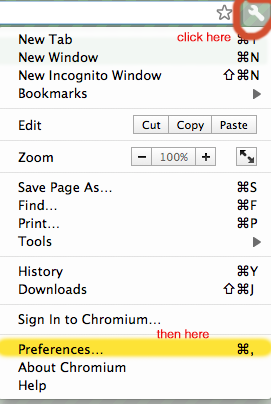
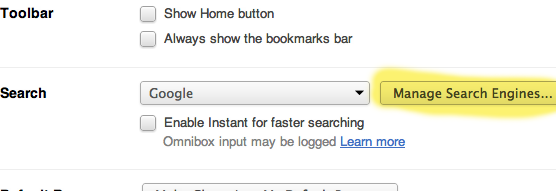

 You may have noticed that when you log out or reboot Mac OS X Mavericks, you get a dialog window with a checkbox next to “Reopen windows when logging back in” that restores all of your currently open applications and windows.