
 you can find the latest version of dropbox on the release notes page.
this is always helpful because sometimes you need to install a version that is experimental to get cool features, such as selective sync.
you can find the latest version of dropbox on the release notes page.
this is always helpful because sometimes you need to install a version that is experimental to get cool features, such as selective sync.
find . -iname “*.php” -exec grep -textString {} \;
Originally Posted by macosxhints.com
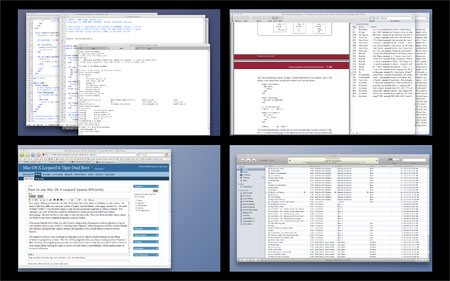
1. Using your mouse, click and hold the window you want to move to another Space.
2. While still holding your mouse button down, use your Spaces keyboard shortcut to move to the desired Space. This is usually done by pressing Control and one of the arrow keys.
Another method: You can also click and hold an application’s title bar and then press “ctrl + number of space you want it to move to”
When developing in PHP perhaps you need to set up a sendmail that just outputs things to text. No need to setup delivery via SMTP. Just create an executable ruby script somewhere, for example: /usr/bin/fake-sendmail.sh with following content:
$ touch /usr/bin/fake-sendmail.sh

# make it executable (will require root priv.)
$ chmod +x /usr/bin/fake-sendmail.sh
#!/usr/bin/ruby
path = "/tmp/fake-mailer"
Dir.mkdir(path) if !File.exists?(path)
File.open("#{path}/#{Time.now.to_i}.txt", "w") do |f|
    f.puts ARGV.inspect
    $stdin.each_line { |line| f.puts line }
end
Then edit php.ini
sendmail_path = /usr/bin/fake-sendmail.sh
props to dan for the script
I changed one line to use a micro-time format because I was having some trouble with a very fast sending script overwriting some of the existing e-mail files. So, here is the new line to insert:
File.open("#{path}/#{(Time.now.to_f.to_s.gsub(".","")+'00000000')[0..14]}.eml", "w") do |f|
Do you need fake sendmail for windows? Check out Byron’s fake sendmail for windows.
Here is a function which creates a menu equivalent to the default. Edit it to suit your needs!
add_filter('favorite_actions', 'custom_admin_favs');
function custom_admin_favs($actions) {
	$actions1 = array(
		'post-new.php'=>array(__('New Post'),'edit_posts')
		'edit.php?post_status=draft'=>array(__('Drafts'),'edit_posts')
		'post-new.php?post_type=page'=>array(__('New Page'),'edit_pages')
		'media-new.php'=>array(__('Upload'),'upload_files')
		'edit-comments.php'=>array(__('Comments'),'moderate_comments')
	);
    return $actions;
}

The Favorte Action menu in WordPress
According to recent benchmarking hybrid hard drives are not significantly faster than their 7200rpm 8mb cache cousins.
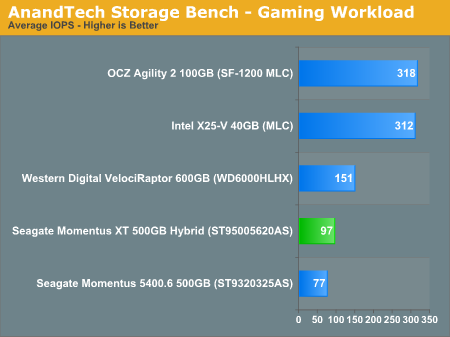
hybrid drive comparison chart
Users may see some performance increases, especially on write times, but the hybrid drives are not yet anywhere as fast as the Solid State Drives (SSD).
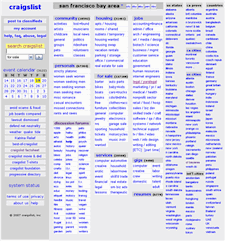 There appears to be a new SPAM robot attacking craigs list ads. The messages are coming from hotmail. I got two from these addresses:
erosat vireyte <[email protected]>
eybelo inatsceal <[email protected]>
The messages just have the text “howdy” and ‘hi t”h:ere’
It seems like as long as you don’t reply to these messages there is no big threat from on going spam as they only have a temporary e-mail alias from the ad.
It’s an official record written by embassy staff to the Department of State in Washington D.C. of an interaction between U.S. diplomatic corps and host country counterparts. The information included within the cable is a summary and important details of a meeting between U.S. diplomats and their counterparts.
Every embassy writes hundreds and hundreds of cables each day. Here’s an example of one…
“So-and-so met with so and so today in the ministry of agriculture and discussed water policy.”
via Yahoo Answers
Political messages communicated internationally may also be referred to as “cables,” derived from the days when an international telegram was sent via a cable (such as the transatlantic cable).
A diplomatic cable is a diplomatic message. The etymology goes back to the mid-nineteenth century when the first diplomatic messages were sent via telegraph. Telegraphs were connected by telegraph cables and the focus on telegraph as the technical device was very often on laying and managing cables (e.g. the epic attempt to lay trans-Atlantic Cable in 1860s). via E-Diplomacy
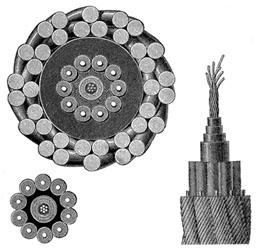
Cross Section of Transatlantic Cable
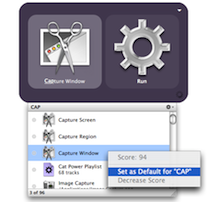
Note: I’d recommend against doing this. It can be buggy and QS does not support it well. However, let me tell you a useful (related) trick: When you are scrolling through the list of options that popup when you search, you can use control+command+d to set an item as “Default”. You can also do this by right clicking on the item and selecting “set as default”. You may need to press it twice to get it to work. You can then select another item that is already set as default and press the same key combination to remove it from being default.
I’m leaving the article below in tact for reference, but again I dont’ recommend it, or at the very minimum I recommend backing up all of your settings files store in ~/Library/Application Support/Quicksilver
Also, if you haven’t checked it out latey, Quicksilver now has a B60 version available, and hopefully a few more versions coming out as well. This has a lot of fixes from the B58 version (which is where quicksilver development stopped at for several years). Check out qsapp.com for downloads, info, a wiki, and plugins.
You might have seen how to set a default action in quicksilver from the Lifehacker Article.
But how do you edit the default actions manually, or change what they are? For example, I have a folder called “public_html” that I want to link to using the letters “sb” (for SandBox). But Quicksilver won’t let me do that because the results aren’t found if I type in sb.
The answer is editing the preference list files, specifically the Mnemonics.plist one.
This file is found in:
~/Library/Application Support/Quicksilver/Mnemonics.plist
The list is a standard XML file. You can edit the key / value pairs to get what you want. **You should probably create a backup of this file before you start hacking away! (store it in a separate folder (desktop?) to avoid QS trying to load it.**

Update: I ended up creating apple-scripts and naming them what I wanted to use as QS shortcuts. I stored all of these in a folder and added it to the QuickSilver catalog. That was much easier than editing the Mnemonics file as QS can get quite buggy at times when you edit that file.
tell application “Finder” open file “Myfile.txt” of desktop
-or-
do shell script “open ~/desktop/myfile.txt”
-or-
tell application “myNonScriptableApp” to open posix file “/Users/me/desktop/myfile.txt”
All applications even non scriptable ones respond to open, activate, quit, and launch. (via)
 How to convert UIF to ISO on a mac:
You can download uif2iso-0.1.2p1.zip via the new project page.
“Just drop the file into UIF2ISO for Mac and it will convert it into a standard ISO format. The ISO you can just use with OSX. Open it. Burn it. It’s really that simple.”