One Weird Old Tip to Lose Belly Fat

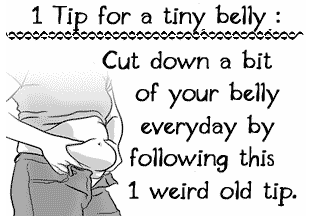
Example Ad

So this question is pretty much a scam to get you to sign up for something you don’t need. But I saw one user posted this as the tip:

“Just pray before you put anything in your mouth – if it is not worth praying for, don’t eat it. If you feel guilty, it was the wrong choice – STOP – and don’t do it again. Eat to live and not live to eat.”

It’s funny but it makes sense. Also, someone has mentioned:

“No food tastes as good as how you feel when you’re fit”

So exercise and eating healthy are the right options.

A similar ad:

One Tip For a Tiny Belly

1 Tip For A Tiny Belly

Posted in Marketing, Random | Tagged | Leave a comment

Del Key on Mac

To get the “del” key (delete key) functionality on a macintosh laptop, simply hold the FN key while pressing “delete.”

Posted in Tech Tips | Tagged , , | Leave a comment

TJ Maxx iPad Scam

Looks like TJ Maxx is offering some iPads at $399, but this is a publicity stunt as Steve Jobs says they are not even an authorized reseller.

Source: 9 to 5 Mac

Posted in Marketing, Tech Tips | Tagged , , | Leave a comment

WordPress Custom Post Type Permalinks Broken

I was having a big problem with wordpress’ custom post types (register_post_type) and 404 / not found errors when using custom permalinks (taxonomies). It was quite annoying until I found the problem: it seemed the taxonomy cache needs to be flushed out after you add a new post type. Here are notes on how to fix this problem:

“Been having this issue with custom post types in general. I seem to have a fix that I’m hoping will work for you guys. It’s a two parter.

After you’ve made your changes to functions.php or wherever you’re adding/editing post types or taxonomies,

1) go into the wp_options table in your database and clear out the option_value field for option_name rewrite_rules .

2) Then go back into your WordPress admin > Settings > Permalkinks and click the save button.

This should reset your rewrite rules to reflect your new rewrite settings for your taxonomy.”

“If you are writing a plug-in, add:

add_action('admin_init', 'flush_rewrite_rules');

your rewrite rules will be flushed when you activate the plug-in then.”

^ PS: Don’t leave that enabled b/c it has quite a profound effect on the number of queries needed to load a page each time.

Thanks @stunnaboi and @tombrink via wp

Final note: If your permalinks are still having issues after trying this, disable the plugins you have running, try this again, and see if that works. If so, one of your plugins is causing trouble with your rewrite rules!

Posted in Tech Tips, Web Development | Tagged | 7 Comments

Firefox: How to find your profile directory

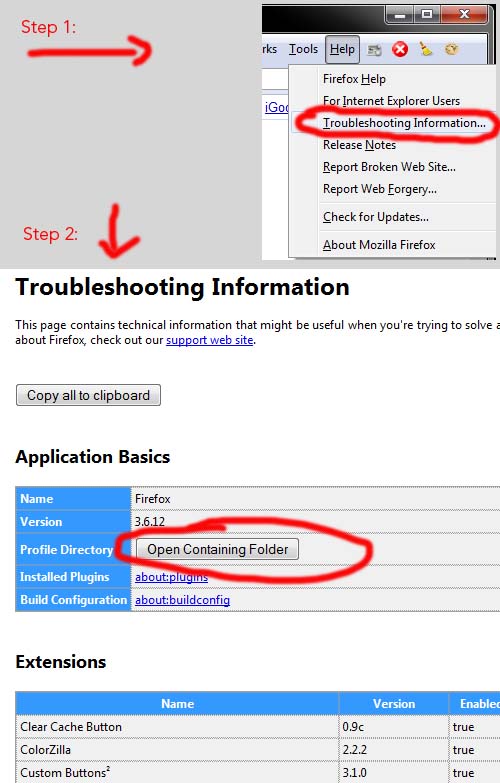
This works for Firefox 3.6 and newer. For older versions, see the Mozilla Help Page.

  1. At the top of the Firefox window, click on the Help menu and select Troubleshooting Information…. The Troubleshooting Information tab will open.
  2. Under the Application Basics section, click on Open Containing Folder. A window with your profile files will open.

Posted in Tech Tips | Tagged | Leave a comment

e textEditor: Exporting Themes

If you like e textEditor and are looking for a way to edit your theme like me, you might be somewhat frustrated with the available documentation. The default theme files are stored inside of “C:\Program Files (x86)\e\Themes\” (nix the x86 for xp or vista/7 32 bit).

However, after you edit a theme you’ll find that those file are exactly the same – there have been no updates or changes! So how does E-textEditor know about / save your changes?

Answer: A local preference file is stored in your Application Data folder. This is also a .tmTheme file, and should be located in the following directories:

vista/7:
C:\Users\username\AppData\Roaming\e\Themes

xp:
C:\Documents and Settings\username\Application Data\e\Themes

You can also remove the files stored in this directory to reset your themes back to the default. Try checking out Blackboard.tmTheme for a nice try at a darker theme.

Posted in Web Development | Tagged , , , | Leave a comment

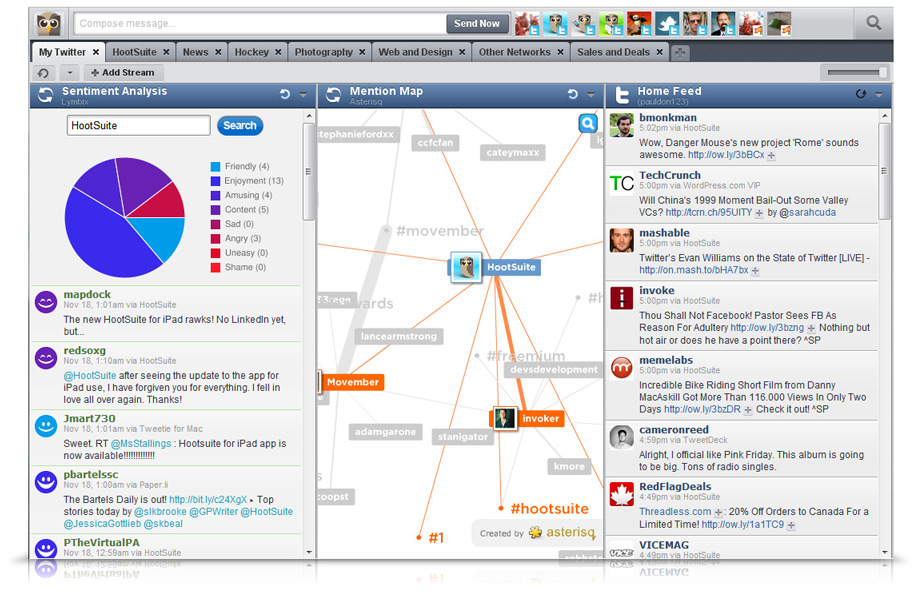
new HootSuite API

Hello!

Since you recently expressed interest in HootSuite’s Ow.ly API, we thought you’d enjoy hearing about the new HootSuite API. This news hasn’t been publicly announced yet so you are one of the first to hear about it before our CEO Ryan Holmes shares the news later today at TWTRCON.

The HootSuite App Exchange will launch December 15 and we’re inviting developers with an idea and resources to request access to the API to begin coding their ideas. To apply, simply fill out the form at:http://ow.ly/3btrl and the program coordinator will follow-up.

HootSuite currently has close to 1 million SME users, 1.9 million social networks, and has recently climbed into the Alexa 200. As such, the HootSuite App Exchange will provide a significant way to build visibility for the brands and developers we partner with – including the potential for revenue sharing.

This new API creates an opportunity for unique mash-ups and extensions which users can add-in to customize their HootSuite dashboard experience. We designed the API to be easy to work with – if you have a working knowledge of Javascript and HTML, you should be good to go. In fact, some compelling apps have been created in under 4 hours.

Last Saturday, HootSuite hosted a hackathon at which we opened up the API to a few developers to a great reaction and great coding session. Additionally, noteworthy partners have already built out applications with several more currently in development.

We look forward to seeing the ideas and apps you submit. If you have any questions or comments about the App Exchange program, please email us at [email protected] and/or follow us on Twitter @HootSuite_Apps.

With Thanks,

The HootSuite App Exchange Team


Note: Much of HootSuite’s service is based on usage of several APIs from different web applications. This allows users to communicate with multiple social networks on one social media dashboard — and do so seamlessly.

Posted in Tech Tips, Web Development | Tagged , | Leave a comment

List of Google Services (for Google Apps)

  • 3D Warehouse
  • Android Market Publisher Site
  • Blogger
  • DART for Publishers
  • DoubleClick Customer Resource Center
  • DoubleClick DART Enterprise
  • DoubleClick for Advertisers
  • DoubleClick for Publishers
  • DoubleClick Search
  • DoubleClick Studio
  • FeedBurner
  • Fusion Tables
  • Google Ad Planner
  • Google AdSense
  • Google AdSense for TV
  • Google Advertising Professionals
  • Google AdWords
  • Google Affiliate Network
  • Google Analytics
  • Google App Engine
  • Google Base
  • Google Bookmarks
  • Google Books
  • Google Checkout
  • Google Chrome Sync
  • Google Code
  • Google Custom Search
  • Google Desktop
  • Google Finance
  • Google Friend Connect
  • Google Help
  • Google in Your Language
  • Google Latitude
  • Google Map Maker
  • Google Maps
  • Google Moderator
  • Google News
  • Google Places
  • Google Public Data
  • Google Reader
  • Google Sidewiki
  • Google Squared
  • Google Subscribed Links
  • Google Translator Toolkit
  • Google Voice
  • Google Webmaster Tools
  • iGoogle
  • Knol
  • Merchant Center
  • orkut
  • Panoramio
  • Partner Program
  • Picasa Web Albums
  • Shopping List
  • Solutions Marketplace
  • Web History
  • Website Optimizer
  • YouTube
  • YouTube CMS
  • YouTube Partner Syndication
  • YouTube Promoted Videos
Posted in Software, Tech Tips | Tagged , | Leave a comment

66.214.241.168 hack / attack

i’d suggest blocking access from 66.214.241.168 to your site. someone or some bot at that address has been connecting via FTP to sites, uploading files (mainly HTML meta-refresh spam pages, and also some iframe pages of the same sort) and causing trouble on websites.

Posted in Web Development | Leave a comment

Removing Fortres Grand: Clean Slate

1. Start the computer in safe mode by pressing F8 early in the boot process.

2. Log in as an individual with administrative rights.

3. Press the Windows Key+R (or use the Search programs and files box from the Start menu).

4. Type “regedit.exe” in the run dialog box and press the OK button in order to launch the Registry Editor.

a. From the Registry Editor, expand HKEY_LOCAL_MACHINE\Software\Microsoft\Windows\CurrentVersion\Run. Delete the string values F101Tray and FSRT.

b. From the Registry Editor, delete the HKEY_LOCAL_MACHINE\Software\Fortres Grand key.

c. From the Registry Editor, delete the HKEY_LOCAL_MACHINE\SOFTWARE\Microsoft\Windows\CurrentVersion\Uninstall\{F8DD027B-25C8-43BE-917B-F9C2FFE2CFE2}} key.

d. From the Registy Editor, delete the HKEY_LOCAL_MACHINE\system\CurrentControlSet\Services\f101fs key.

e. From the Registy Editor, delete the HKEY_LOCAL_MACHINE\system\CurrentControlSet\Services\FSRT key.

f. From the Registry Editor, delete the HKEY_LOCAL_MACHINE\SOFTWARE\Microsoft\Windows\CurrentVersion\Installer\UserData\S-1-5-18\Products\B720DD8F8C52EB3419B79F2CFF2EFC2E key.

g. From the Registry Editor, delete the HKEY_CLASSES_ROOT\Installer\Products\B720DD8F8C52EB3419B79F2CFF2EFC2E key.

5. Close the Registry Editor.

6. Press the Windows Key+R (or select Run… from the Start Menu).

7. Type “C:\Program Files” in the Search programs and files box from the Start menu and press the OK button in order to open an Explorer Windows rooted at the “C:\Program Files” folder.

8. Delete the Fortres Grand folder. If you have 64-bit Window, then do the following. Type “C:\Program Files (x86)” in the Search programs and files box from the Start menu and press the OK button in order to open an Explorer Windows rooted at the “C:\Program Files (x86)” folder.

9. Reboot the computer to complete the manual uninstall.

Posted in Software | Tagged , , , | 2 Comments