This method will work for all users on your system, because you will be editing the system-wide profile and not a user-specific one.
Step 1: Edit /etc/profile
You will need to have root privileges to do this. You can open the file in TextEdit by going to File->Open and when the dialog pops up press Command-Shift-G to open the “Go to Location” dialog, then type in /etc/profile. Open the file called “profile” which should now be highlighted in your list of files.
After opening that file, add the following two lines to the bottom:
The colors can be configured as stated in the ls manual, which can be accessed in terminal via “ls man”
Look for the section LSCOLORS. Here is what it says about the colors you can use to configure the display:
LSCOLORS

The value of this variable describes what color to
use for which attribute when colors are enabled
with CLICOLOR.  This string is a concatenation of
pairs of the format fb, where f is the foreground
color and b is the background color.

The color designators are as follows:

     a     black
     b     red
     c     green
     d     brown
     e     blue
     f     magenta
     g     cyan
     h     light grey
     A     bold black, usually shows up as dark
           grey
     B     bold red
     C     bold green
     D     bold brown, usually shows up as yellow
     E     bold blue
     F     bold magenta
     G     bold cyan
     H     bold light grey; looks like bright
           white
     x     default foreground or background

Note that the above are standard ANSI colors.  The
actual display may differ depending on the color
capabilities of the terminal in use.

The order of the attributes are as follows:

     1.   directory
     2.   symbolic link
     3.   socket
     4.   pipe
     5.   executable
     6.   block special
     7.   character special
     8.   executable with setuid bit set
     9.   executable with setgid bit set
     10.  directory writable to others, with
          sticky bit
     11.  directory writable to others, without
          sticky bit

The default is "exfxcxdxbxegedabagacad", i.e. blue
foreground and default background for regular
directories, black foreground and red background
for setuid executables, etc.
I’ve written an app for OS X that will take an Adobe Illustrator file with broken links / liked files, and run through those trying to relink them automatically.
Instructions
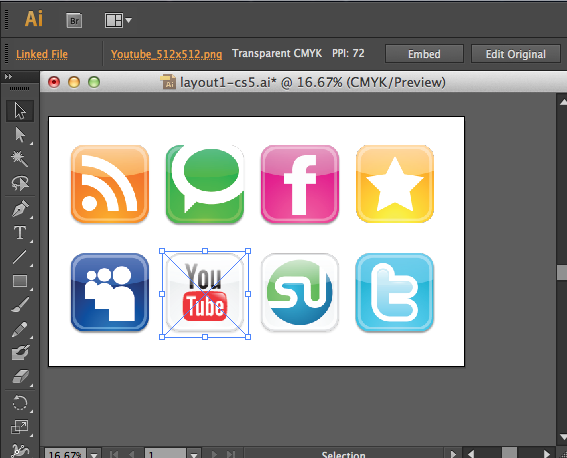
Open the Adobe Illustrator (.ai) file with Illustrator. This application has been confirmed to work with Illustrator versions CS3, CS4, CS5, and CS6, and Adobe Creative Cloud
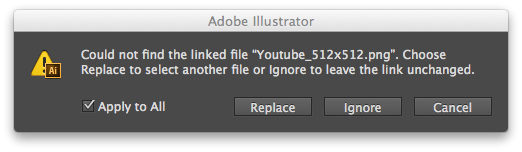
Choose “Ignore” or “Ignore / Apply to All” to the messages about the missing files when the document is opening. Those are typically something like “Could not find the linked file / Choose Replace to select another file or Ignore to leave the link unchanged.”
Run the Fix Linked Files App that you downloaded / installed.
You will be prompted for a directory to search (recursively) for the missing linked files. By default this is set to three levels up from where the Adobe Illustrator file with the missing linked files is located. Please note: If you choose the root folder ( / ) or a folder with many files in it, it may take some time for the system to search for the linked files. I would suggest choosing the most restrictive path possible to start with.
After the app has completed, any linked files found will be updated (and will show up normally) in Adobe Illustrator.
Save the AI file and the linked files will continue your workflow with all the linked resources now fixed!
Next time you open this file all of the resources will remain fixed and you will not be prompted to relink them when re-opening the .ai file.
Requirements
Mac OS X
Adobe Illustrator CS2, CS3, CS4, CS5, CS6, CS7, CC
Also works with latest Adobe Creative Cloud (CC) version
What if I have Adobe Creative Cloud?
I’ve done thorough testing to make sure that my application works with all version of Adobe Illustrator Creative Cloud. If the Fix Linked File application doesn’t work I will personally help you and if that doesn’t work I’ll issue a refund.
Beta Version
The beta version features a more comprehensive report of the files that are missing and which ones are found when you run the program. If you have any problems with the current version let me know and you can test the beta version.
Instructions – for Newest Version
Open the Adobe Illustrator (.ai) file with Illustrator
Choose “Ignore” or “Ignore / Apply to All” to the messages about the missing files when the document is opening. Those are typically something like “Could not find the linked file / Choose Replace to select another file or Ignore to leave the link unchanged.”
Run the Fix Linked Files App
Click on “Analyze Linked Resources”
The area in the middle should show a list of linked resources that are present in the .ai file you opened
Now click “Search and Re-Link Resources” and choose a folder that contains the link resources ( or that contains subfolders which contain the linked resources )
Click OK and the program should start fixing the broken links
Download / Purchase
The cost of this application is $15USD per license. One license should be purchased per user, but if you have multiple computers (where you are the primary user) you may use this application on each of them. You may purchase via PayPal and you will receive a link to download it immediately. You will also receive both the application and the sample project and resource files from the video / screen cast. You may not modify or redistribute this application. Please contact me if you have any questions.
Satisfaction Guaranteed or your money back
Instant download upon payment
This app is no longer available for sale.
“Adobe Illustrator Fix Linked Files” General Feedback
So far I’ve had a few dozen people who have purchased this program (thank you all for supporting further development!) and the application is working well for all of them. If you have any trouble with this program please contact me and I will be happy to assit, usually within an hour or two.
F.A.Q.
Does this work in Adobe CS6?
Yes, thoroughly tested with Adobe Illustrator CS6, this application solves the problem quite well. Screenshots:
Will this work if some of the linked files are missing?
YES – This program will re-link all of the files it can find – even if one or more are not present.
If someone has sent me files created on a Windows PC, can I use this to re-link them on my Mac?
Absolutely! You can re-link all of Illustrator’s Linked Files independent of which platform created the Adobe Illustrator (ai) file initially.
What types of files can be re-linked?
All file types – including but not limited to: PNG, JPG / JPEG, GIF, BMP, PSD (Photoshop), PDF, EPS, and AI file extensions.
I use mac 10.6.8 and adobe CS6. Do you have positive feedback from anyone using CS6?
I wrote the application while using 10.6.8 before upgrading to 10.7 and then 10.8. It worked fine for me on all versions and no one who has purchased the application has ever complained that it wouldn’t run. I am currently using it with Adobe Illustrator CS6 and it works great. So far there have been three issues customers have had:
1) The application was unable to add in a linked resource – after investigation this turned out to be due to the resource being named with the incorrect extension – it was a JPG file that had a .PNG extension. This actually causes an error in Illustrator which prevented my application from completing its task. After renaming the file to the proper extension it worked fine.
2) Occasionally someone will find a file that has a special character in the path name that causes the application to fail. If you experience that issue I can usually provide a fix in about 24 hours.
3) If you are using an AFP fileshare from a mac with a G4 processor you may have to move the resource files to a local drive (try moving the project folder to your Desktop).
Does this work on Microsoft Windows based PCs (Windows XP, Windows Vista, and Windows 7)?
Not at this time, but please leave a comment below if you would like to be notified if I can ever get the Windows version working. (I tried to write a Windows version first ;)
I am a freelance designer, so I would be using your product for business. How much does a commercial version cost?
I’ve just rewrote the pricing section so that it is more clear. Basically, each person who uses the application should purchase it. What I hope won’t happen is for a design shop to purchase the application once and install it on all of their computers.
Do you have a physical address and a phone number?
I am happy to provide e-mail support unless an issue is overly complicated and then we can schedule a phone call. If you are not satisfied with the program please contact me and I will make sure we resolve any issues.
Do you provide a user guide with your “Adobe Illustrator Linked File” program?
The application is fairly straight forward – there isn’t any functionality that is not shown on the YouTube video / screencast. I try to keep my webpage updated with helpful information.
Would I be able to “uninstall” the program if it causes any problems?
The application does not need to be “installed” – it is a single, self-contained `.app` file. You can store it wherever you like but most people would probably drag it to the Applications folder. To uninstall, just drag it to the trash.
Is there any chance that your program could cause any kind of problems on my computer?
I suppose there is no 100% guarantee for anything, but the application works by looking for missing files in your Adobe Illustrator (`.ai` file) and then scanning the folder (and subfolders) your specify to try and repair the links. It seems unlikely to me that this “read only” behavior would be able to cause any problems.
If I update my links with your program, then if I deinstall your program, will illustrator still be able to locate the linked files automatically?
Adobe Illustrator is that smart at handling linked files. If you move a project folder from one computer to another, chances are when you open the `.ai` project Adobe Illustrator won’t be able to located the linked resources. If you use this application to fix the linked files, then save the `.ai` file, the next the you open that Adobe Illustrator file on that system it will open just fine without asking to re-link the files – even if the program has been uninstalled. However, if you move your `.ai` project to another computer Adobe Illustrator will most likely ask you fix the links when you open it on that computer.
If I desire, am I able (via a preference setting) to change the default of three levels of folder searching to something else, like 1, 2, 4, 5, 10 etc. ? I realize that the more folders that it needs to look through, the longer it will take to find the linked files.
The app will actually search unlimited levels deep – so you can use it to search your entire hard drive. The “three levels” thing is where the default “open folder” dialog starts off. For example, if your illustrator file is in Projects->BigClient->Billboards->Spring->sprint01.ai when you run the application it will open an “open folder” dialog to the “BigClient” folder – three levels up from where the .ai file is stored. If you click “OK” the application will then search the “BigClient” folder and all subdirectories until it finds the matching resource or has completed the search of all files and subdirectories inside the “BigClient” folder – no matter how many levels deep.
I would like for your program to search through my entire hard drive and/or drives to find the missing links. However on my drives there may be mulitple files of the image with the same name. So it would be nice to be able to set a preference to find the either the MOST RECENT file, or to have a feature that would show me the linked file various locations and allow me to pick one of those links. Does that make sense?
This is not currently a feature but it is something that could be added to a future version, although I can’t promise you a date that this would be available. However, like everyone who purchases the application, future updates will be provided to you free of charge.
Is your program an illustrator plug-in, or a freestanding application?
It is a small freestanding application.
Can I move or rename the Adobe Illustrator relinking application?
Yes – you can move the application anywhere you choose (Applications folder, desktop, etc). You can rename it if you like. You can create a shortcut in your Dock (many people do that).
Do I need to change any System Preferences?
You may need to change the “Allow Applications” system preference under the “Security and Privacy” section:
adobe illustrator cs5 could not find the linked file
adobe illustrator linked files
ai cs5 could not find the linked file
apply to all? illustrator ignore
can ai file be linked to url
choose replace to choose another file or ignore illustrator
coud not find linked file
could not find the linked choose replace to select another file on this computer or ignore to leave the link unchanged.
could not find the linked file choose replace to select another file or ignore to leave the link unchanged
CS5, could not find the linked file
file link illustrator mac windows
how to fix broken links illustrator
how to save linked file adobe illustrator
illustrator could not find linked file choose replace to select another file or ignore to leave the link unchanged
Although WordPress has an option to remove the container from the wp_nav_menu function, that is generally for the `
` and not the `
` that wraps the `
` items. So, while you can use the options to remove the `
`, the `
` will stay. It might be good to use a filter method like add_filter( ‘wp_nav_menu’, ‘remove_ul’ ) to accomplish the filter I have below, but that the filter was not being applied at the time of writing, so I (used to) recommend changing the `echo` option to `false`, and returning the value of the `wp_nav_menu` function to a variable, and then running a regular expression on it to remove the encompassing `
If you want it to use the site’s pages as a default (if no menu is specified and the function is called), you can add an additional function and change the options array as shown:
function default_page_menu() {
wp_list_pages(‘title_li=’);
}
I think as of WordPress 3.1 they added a new parameter to make it easier to get rid of the `
` that wraps the menu. It is called `items_wrap`
When you call `wp_nav_menu` you will want to specify that option.
By default it is set as:
‘items_wrap’ => ‘
%3$s
‘
To get the `ul` to go away change it to:
‘items_wrap’=>’%3$s’
Also, someone had a question about changing the `
` elements to ``. I would recommend doing this with CSS instead (i.e. just set them to display as blocks), but if really want to do that you might want to use a regular expression like this:
$menu_items = preg_replace(‘#
#’,’/div>’,$menu_items);
Or use a menu walking function like the one described on this page.
I got tried of accidentally hitting the CMD-H key and having a window disappear. So I wrote this little script and then assigned it to CMD-SHIFT-H to restore (unhide, unminimize) all hidden or minimized windows. Works on OS X 10.6, 10.7, 10.8, and 10.9 Snow Leopard, Lion, Mountain Lion, and Mavericks. Feel free to post improvements in the comments. I also think it would be cool to figure out the last window that was hidden, something like tell previous application and just restore that one. But this works for now.
tell application "System Events"
	repeat with theApplication in application processes
		if visible of theApplication is not true then
			set visible of theApplication to true
		end if
	end repeat
end tell
You can also do this with an Application like Terminal.app:
tell application "System Events"
	repeat with theApplication in application "Terminal"
		if visible of theApplication is not true then
			set visible of theApplication to true
		end if
	end repeat
end tell
Sometimes if you have “Minimized” instead of “Hidden” an application, it still won’t come back into the foreground when using the previous methods, so you can also try something like this:
do shell script "open '/Applications/Utilities/Terminal.app'"
This works by telling the application to “open” again which should also bring it to the front.
I’ve been trying to avoid upgrading my face book profile. But it seems that Facebook is now forcing users to upgrade. When I signed on I received this message:
Coming Soon: Your New Profile
In the next few days you’ll be upgraded to the new profile, which offers more ways to show and tell your story.
While Facebook continues to introduce new features, many of the features involve creating ways to link people to places, websites, organizations, and, of course, other people.
The more links and “relationships” Facebook can create, the more data-mining they can do, and the more targeted advertising they can develop. Did you wonder why they wanted to launch an e-mail service?!
Just finished reading the article about the VerbalVictor iPad / iPhone app, where a father has invented an app to allow his son, who is unable to speak, to to use the iPad to communicate, in a familiar voice.
Victor has a rare genetic disorder that delays development of a number of skills, including speech. To help him and others with disabilities, his father, Paul, and some of his students at Wake Forest University in Winston-Salem have created an application for the iPhone and iPad that turns their touch screens into communications tools.
The VerbalVictor app allows parents and caregivers to take pictures and record phrases to go with them. These become “buttons” on the screen that Victor touches when he wants to communicate. A picture of the backyard, for example, can be accompanied by a recording of a sentence like “I want to go outside and play.” When Victor touches it, his parents or teachers know what he wants to do.
1) Hit the Print Screen key on your keyboard. It’s usually in the upper right and marked “PrntScrn” or “PrtSc”.
2) Try to Paste directly into a email you’ll send to us (either by holding down the “Ctrl” key and pressing the “V” key, *or* by right-clicking the blank screen and selecting “Paste”).
If your email program doesn’t let you do that, then:
3) Click the green Start button on the lower left of your screen.
4) Navigate to All Programs -> Accessories, and open the Paint program.
5) Paste into the Paint program, either by holding down the “Ctrl” key and pressing the “V” key, *or* by right-clicking the blank screen and selecting “Paste.”
6) Save the file (from File -> Save) as a .JPG (choose “Save as type” JPEG).
7) Attach that file in an email.
If you have a MAC:
1) Hold down the Shift key *and* the Command key (which may have an Apple logo and/or a “four-leaf clover” type symbol). Then, while still holding down these keys, press the 3 key. This will save the screenshot as a file on your Desktop. If you hit the 4 key instead, it will give you a target allowing you to drag a box around only the item that you want to take a screenshot of.
2) Attach that file in an email.

![Adobe Illustrator Could Not Find The Linked File [Solved]](https://techblog.willshouse.com/wp-content/uploads/2011/01/adobe-illustrator-could-not-find-the-linked-file-solved-1.png)
![Adobe Illustrator Could Not Find The Linked File [Solved]](https://techblog.willshouse.com/wp-content/uploads/2011/01/adobe-illustrator-could-not-find-the-linked-file-solved-2.png)
![Adobe Illustrator Could Not Find The Linked File [Solved]](https://techblog.willshouse.com/wp-content/uploads/2011/01/adobe-illustrator-could-not-find-the-linked-file-solved-3.png)