Chromium Download

This has become increasingly difficult to find online. It looks like the Chromium blog talks more about it without giving many clear options about how to download or install chromium.

Well, here’s my small contribution. You can find the latest files here:

http://build.chromium.org/buildbot/continuous/win/LATEST/

and for mac: http://build.chromium.org/buildbot/continuous/mac/LATEST/

Try this instead: http://commondatastorage.googleapis.com/chromium-browser-continuous/index.html

I highly recommend the mini_installer.exe for Windows XP or Vista.

Here are links to the bleeding edge builds of chrome for mac or chrome for linux

Also, Chromium is MUCH BETTER for installing and managing extensions ( see chromeextensions.org ) than Chrome. You can install with just one click! And you get a nifty “extensions” panel under the “tools” menu.

chromium_latest

Chromium install locations:

C:\Documents and Settings\User\Local Settings\Application Data\Chromium\Application

C:\Documents and Settings\User\Local Settings\Application Data\Google\Chrome

win 7:
C:\Documents and Settings\User\Local Settings\Application Data\Chromium\Application

Posted in Software | Tagged , , , | 1 Comment

Chromium as default mailto: on Windows XP

comparisonHere’s how!

If you have Chrome installed, uninstall it, or this program (below) will use Chrome by default instead of Chromium (Chromium is not Chrome)

Make sure this directory structure exists: C:\Documents and Settings\User\Local Settings\Application Data\Google\Chrome (replace User with your username)

Don’t create an Application folder inside the chrome folder – the next steps will do that.

Get the Sysinternals Suite (or at least the junction program for creating softlinks)

Run this command:

junction “C:\Documents and Settings\User\Local Settings\Application Data\Google\Chrome\Application” “C:\Documents and Settings\User\Local Settings\Application Data\Chromium\Application”

(Replace User with your username)

Download ChromeMailer and go through setup

Launch ChromeMailer and choose your options.

Trouble? ChromeMailer (as of 8/09) looks for Chrome in it’s default path – your profile\Google\Chrome\Application

You can either install chromium into that directory, or install it into the proper directory and create a softlink (junction) so the folders mirror each other. If you delete something in one folder it will be deleted in the other one, too. Look up softlinks on wikipedia for more info.

Posted in Software, Web Development | Tagged , , | Leave a comment

Chromium is NOT Chrome

comparisonChromium is NOT Chrome. It’s the name of the bleeding-edge nightly releases that are untested for bugs.

Some of the more advanced features that Chromium is currently offering includes ftp downloads and the ability to pick and choose the items which will appear on your startup page. You can make these sticky, reorder, or prevent certain ones from appearing.

Visit the Chromium homepage, development blog, or latest releases page for more information.

Posted in Design, Software, Web Development | Tagged , , | Leave a comment

Linux / Unix: Change to a softlink’s absolute path (directory)

If you have quick links from your home directory to other places on your server, you might find this command useful:

cd -P `pwd`

It’s the Change Directory (cd) command with the -P flag (evaluates true base path from softlinks), followed by a apostrophe (same key as ~) and the pwd (print working directory) command, followed by another apostrophe

You could even create an alias to do this for you!

Posted in Tech Tips | Leave a comment

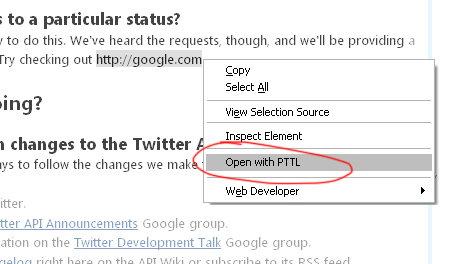
Open with PTTL – Firefox 3.5+ (Plain Text to Link)

I love the Open PTTL firefox extension, but recently upgraded to Firefox 3.5. One of the add-ons which broke was the “Plain Text to Link” addon. I took a look at the Mozilla Addons page and this is the author’s only extension. And it hasn’t been updated since July 2008.

I took a quick look at the code and it seemed pretty simple – and it looks like everything will work fine with Firefox 3, so I’ve edited the install requirements to allow installing on up to Firefox 3.5.*

The old extension file was named plain_text_to_link-1.5.20080618-fx.xpi

I’ve called the new one plain_text_to_link-1.6.20100125-fx.xpi

You probably need to download it to your computer and then drag the xpi file on top of firefox to install :)

open_pttl

Posted in Web Development | Tagged , , , | 17 Comments

First neutrino observation

clipped from en.wikipedia.org

File:First neutrino observation.jpg
The world’s first neutrino observation in a hydrogen bubble chamber was found Nov. 13, 1970, on this historical photograph from the Zero Gradient Synchrotron’s 12-foot bubble chamber. The invisible neutrino strikes a proton where three particle tracks originate (right). The neutrino turns into a muon, the long center track. The short track is the proton. The third track is a pi-meson created by the collision.
Posted in Science | Leave a comment

Good wordpress themeing (and optimizing) videos

http://wordpress.tv/2009/07/12/jeremy-clarke-theming-montreal09/

http://wordpress.tv/2009/07/11/jeremy-clarke-optimization-montreal09/

http://wordpress.tv/2009/07/11/andy-peatling-cooking-with-buddypress/

Posted in Design, Web Development | Tagged , | Leave a comment

Enabling Linked Tables in phpMyAdmin

This is what I was running when I got this to work:

  • WAMP Server 2.0
  • Apache 2.0.63
  • PHP 5.2.8
  • MySQL 5.1.36

Step 1: Edit and run create_tables.sql

This sql file is included with phpMyAdmin, in a wamp installation it can be found at: C:\wamp\apps\phpmyadmin3.2.0.1\scripts\create_tables.sql

On many Linux systems that file can be located at /etc/phpmyadmin/config.inc.php

There are two sections at the top which are usually commented out – one to create a phpmyadmin database, and one to create a phpmyadmin user. I usually just create the database myself and I prefer to use the following command in the next step to create the user. So, after creating the database, I usually just run the file as it originally came.

Step 2: Create a control user (controluser):

You’re on your own if you used the script above to create your control user, and you probably know what you’re doing. If you don’t, however, I recommend these mysql commands:

CREATE USER 'phpmyadmin'@'localhost' IDENTIFIED BY 'pmapass';
GRANT SELECT, INSERT, UPDATE, DELETE ON phpmyadmin.* TO 'phpmyadmin'@'localhost';

Step 3: Edit config.inc.php:

Add these lines to your config.inc.php file and then you should be good to go!

$cfg['Servers'][$i]['pmadb'] = 'phpmyadmin';
$cfg['Servers'][$i]['bookmarktable'] = 'pma_bookmark';
$cfg['Servers'][$i]['relation'] = 'pma_relation';
$cfg['Servers'][$i]['table_info'] = 'pma_table_info';
$cfg['Servers'][$i]['table_coords'] = 'pma_table_coords';
$cfg['Servers'][$i]['pdf_pages'] = 'pma_pdf_pages';
$cfg['Servers'][$i]['column_info'] = 'pma_column_info';
$cfg['Servers'][$i]['history'] = 'pma_history';
$cfg['Servers'][$i]['designer_coords'] = 'pma_designer_coords';
$cfg['Servers'][$i]['tracking'] = 'pma_tracking';

$cfg['Servers'][$i]['controluser']   = 'phpmyadmin';
$cfg['Servers'][$i]['controlpass']   = 'pmapass';

Troubleshooting:

If you’re getting the message “The additional features for working with linked tables have been deactivated. To find out why click here.” or something similar, it probably means you don’t have the pmadb, controluser, and/or controlpass set up correctly to corresponding users in the database.

If you’re getting a message saying  “not OK [ Documentation ]” but the first line ($cfg[‘Servers’][$i][‘pmadb’]) says OK, you either need to adjust the table names, or overcome something more complex. For me, after I switched to Apache 2.0 from 2.2 it started working.

ps: After installing, I was getting this to work fine with firefox 3.5, however, it was a no-go on google chrome.

Good luck.

Also see:

Posted in Tech Tips, Web Development | Tagged , | 19 Comments

nVidia profile (keyboard) shortcuts

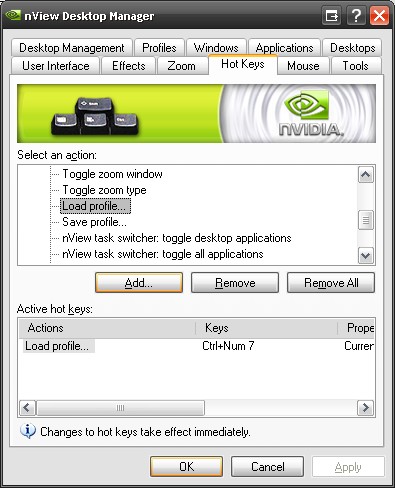
If you have recent nVidia software, you can enable the nView desktop manager, and then access the nView Desktop manager’s HotKeys tab.

There you will find an option to assign a keyboard shortcut to a profile.

nvidea keyboard shortcut profile

I’ve also been trying to figure out a way to adjust the brightness and contrast with a quick, command line or shortcut method. Here’s as far as I’ve gotten.

Posted in Software, Tech Tips | 1 Comment